View the result
When the run shows completed, click into it to open the test result detail page. This is where you find out exactly what happened on the call.
What you see
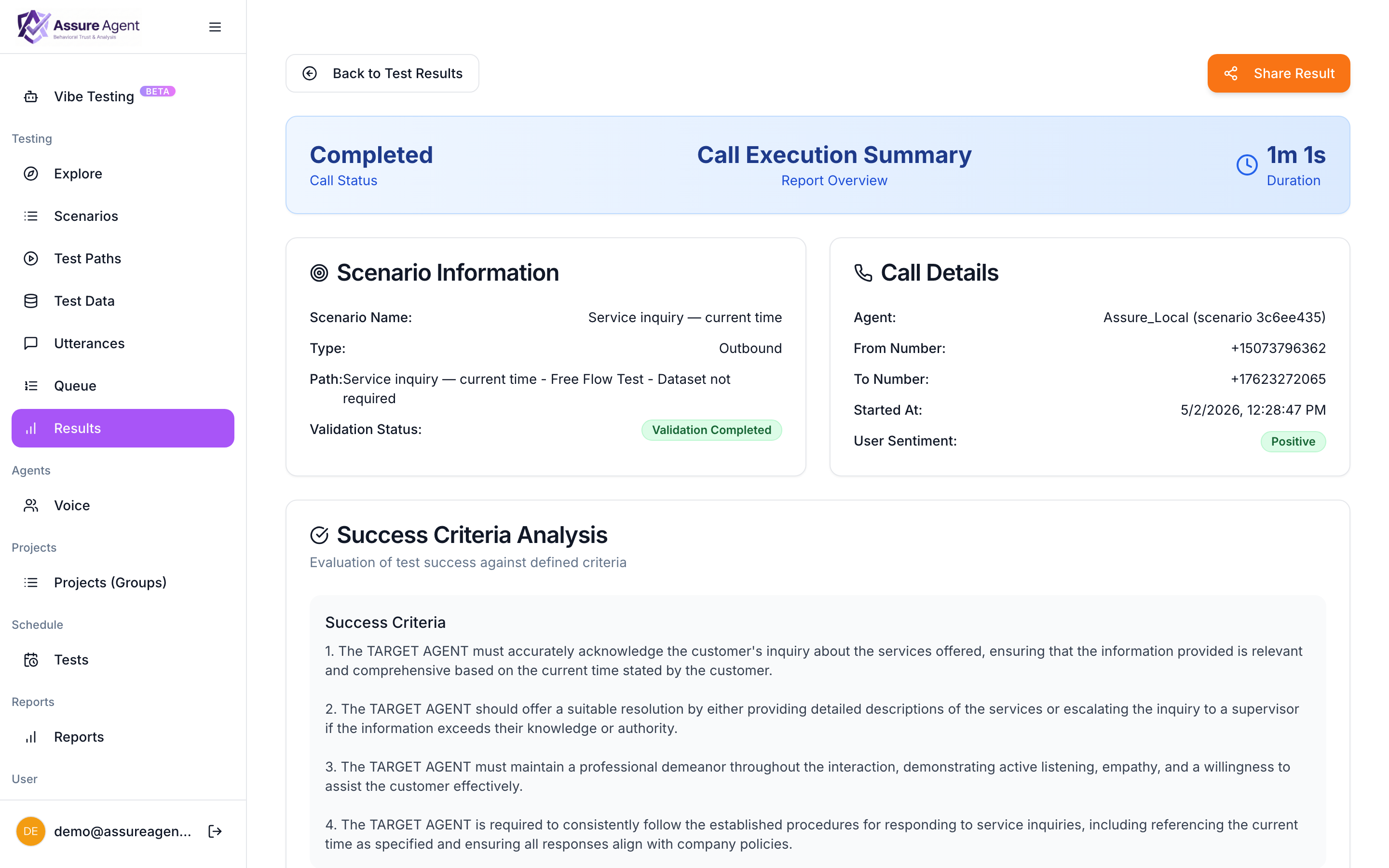
- Header — pass/fail badge, scenario name, agent, run timestamp, total duration.
- Call Execution Summary — overall outcome, validation status.
- Scenario Information + Call Details — agent name, from/to numbers, started-at.
- Success Criteria Analysis — the rubric used and the reasoning for the verdict. If the test failed, this is where you find out why.
- Transcript (scroll down) — every turn, speaker-labeled, timestamped. Tool invocations show up inline. Click any turn to seek the audio.
- Audio player (voice runs) — full call recording with seek + speed controls.
Reading the verdict
The verdict comes from an automated evaluation that reads the transcript against the rubric. If the verdict looks wrong (the call WAS fine but the system flagged failure, or vice versa), you can override it manually — the override is recorded with your username for traceability.
What to do next
A single result is just one data point. You’ll usually want to:
- Run more paths to broaden coverage.
- Re-run the same path after making target changes to compare.
- Group results into a report so you can see trends or share with stakeholders.
We’ll do the report part in the next step.
Next: create and share a report Roll up your runs into a shareable report.