
Create and share a report
A single test result is one conversation. A report rolls up many runs into one analytical view — pass-rate, regressions, slowest paths — and lets you share with stakeholders who don’t have AssureAgent accounts.
For your first report, we’ll bundle the run you just did. As you accumulate more runs, the same flow scales to weeks of regression coverage.
Step 1 — Select results to include
- From the left nav, click Results.
- Use the filters (date range, scenario, status) to narrow the list.
- Tick the checkboxes on the rows you want in the report.
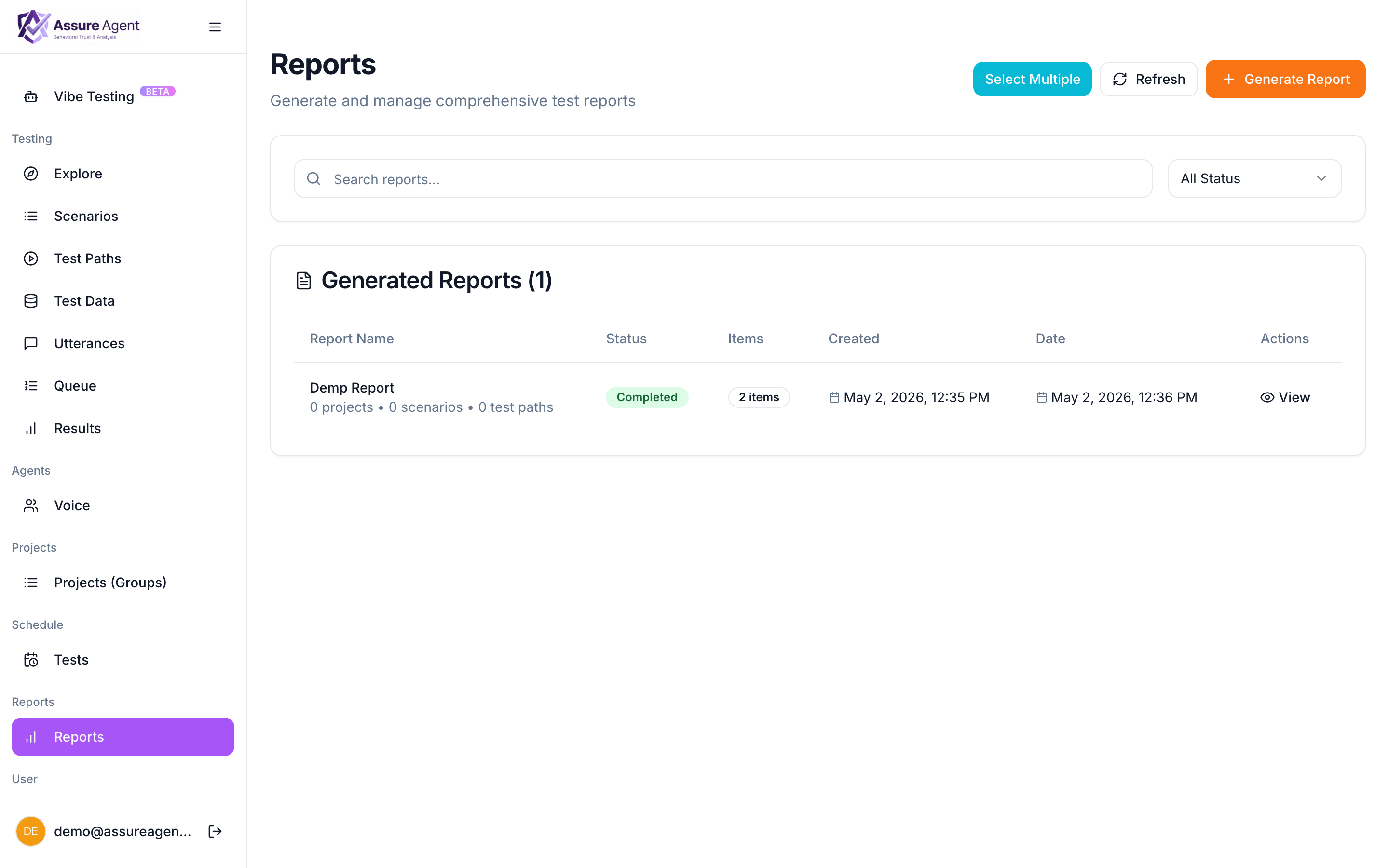
Step 2 — Generate the report
- Click + New report (or Generate report from selection, depending on your view).
- Give it a name like
Smoke test — May 2. - Confirm the included runs.
- Save.
The report computes in the background. When it’s ready, click into it.
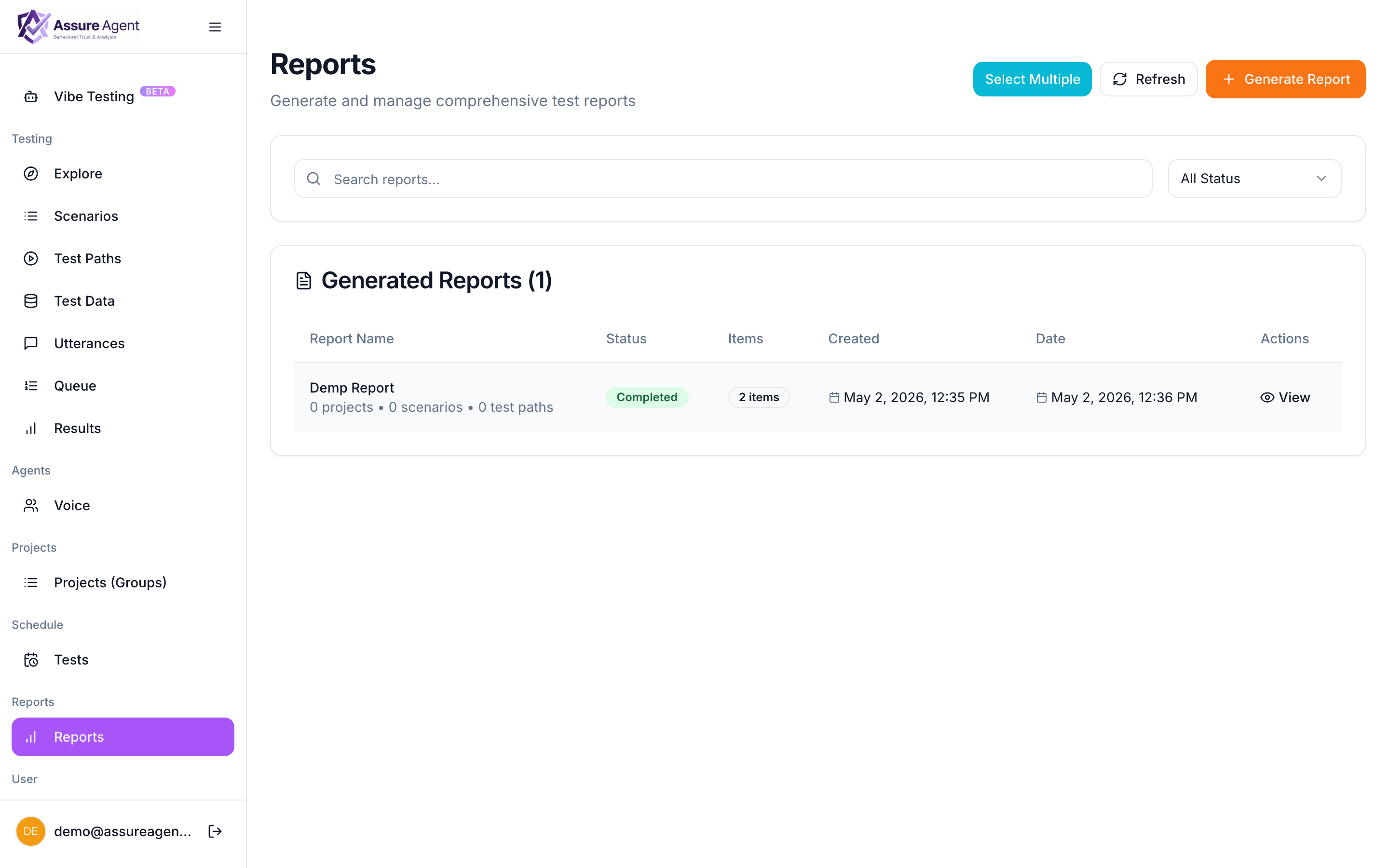
You’ll see:
- Pass-rate summary across the included runs.
- Run table — every run, sortable. Click any row to drill into the single test result.
- Latency breakdown — slowest paths, slowest turns.
Step 3 — Share
- Click Share in the top-right of the report.
- AssureAgent generates a tokenized public URL.
- Copy the link. Send it anywhere — Slack, email, ticket. The recipient sees the report read-only with no AssureAgent account required.
The same Share flow works on a single test result if you want to share a specific call rather than the whole roll-up.
You’re done with Get started
You now have:
- A working agent for placing calls.
- A provisioned phone number.
- A scenario describing one situation.
- A test path generated and a run completed.
- A test result you’ve reviewed.
- A report you’ve generated and shared.
That’s the end-to-end loop. Everything else in the docs builds on this — custom functions for richer test calls, the graph designer for scripted flows, and vibe testing for exploratory generation.