
Create a scenario
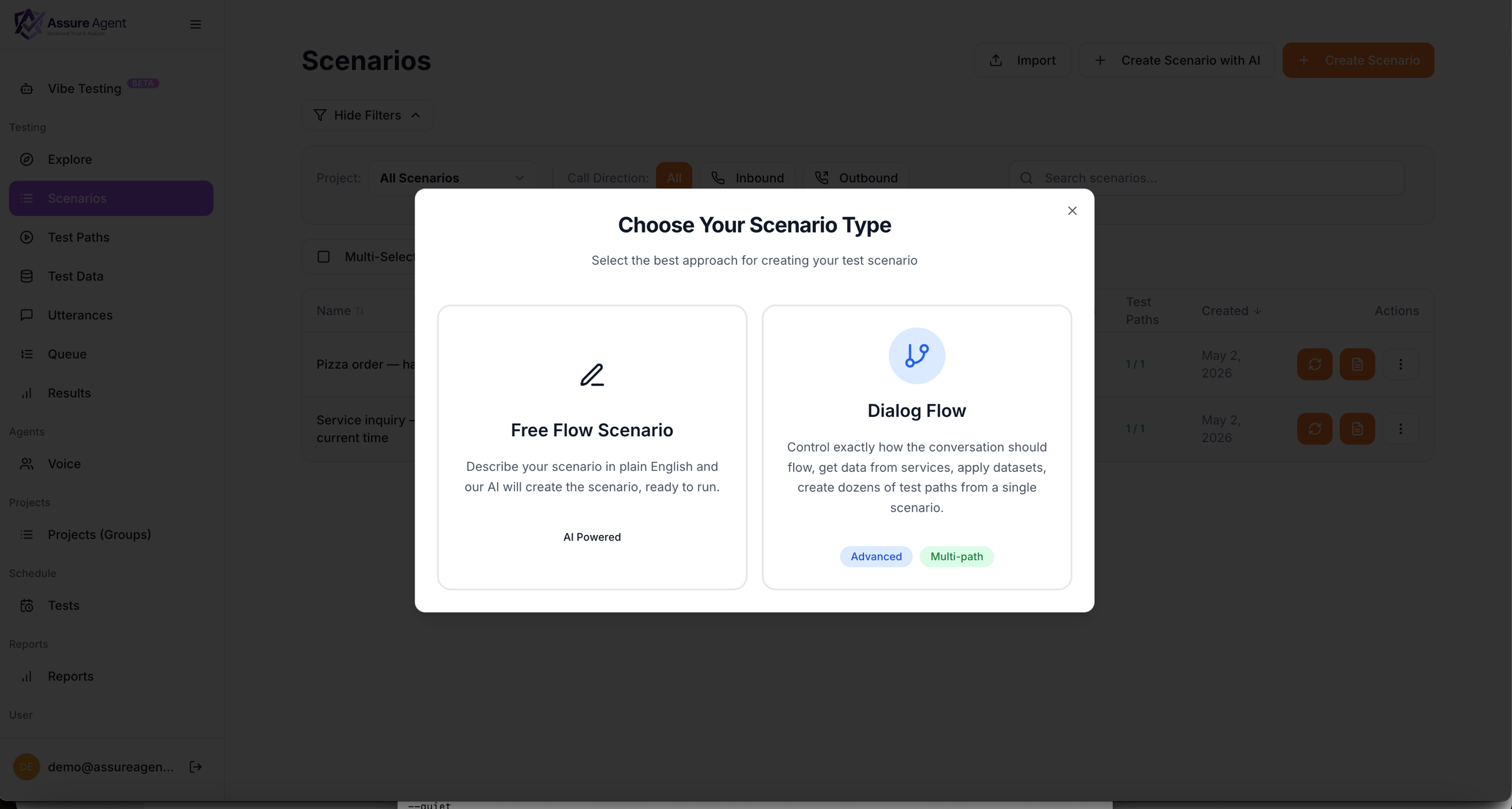
A scenario describes one situation you want to test. Two flavors are supported:
- Free Flow — describe the scenario in plain English; AssureAgent’s AI generates the caller persona at runtime. Fastest path to something runnable.
- Dialog Flow — visual canvas where you control every turn precisely. Advanced; supports service calls and dataset-driven multi-path expansion.
For your first scenario we’ll go with Free Flow.
Step 1 — Pick the scenario type
- From the left nav, click Scenarios.
- Click + Create Scenario in the top-right.
- The “Choose Your Scenario Type” modal opens. Click the Free Flow Scenario card.
Step 2 — Fill in the scenario form
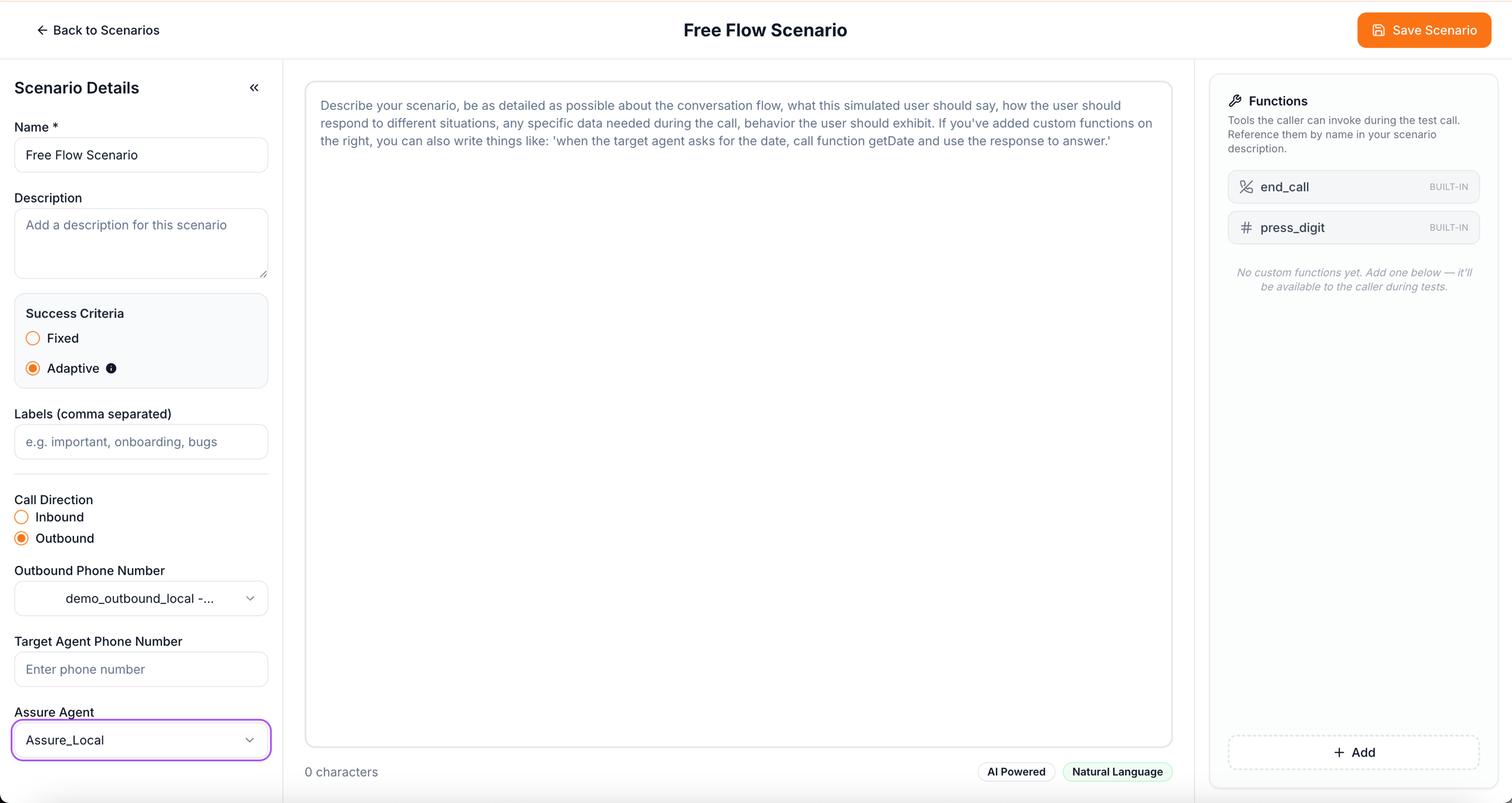
The Free Flow Scenario page has three columns: Scenario Details on the left, the big description text area in the center, and the Functions panel on the right.
Left panel — Scenario Details
Fill in:
- Name — short label (e.g.
billing-dispute-happy-path). - Description (optional) — one-line summary that shows up in the scenarios list. Different from the big description in the center.
- Success Criteria — pick Adaptive for now (the platform writes a sensible rubric from your scenario description). Switch to Fixed if you want to lock the rubric verbatim.
- Labels (optional) — comma-separated tags for filtering in reports.
- Call Direction — pick Outbound (AssureAgent will dial your target).
- Outbound Phone Number — the number you provisioned earlier.
- Target Agent Phone Number — the E.164 number we should dial. This is your system under test.
- Assure Agent — the agent you created in step 2.
Center — describe your scenario
The big text area is where the persona’s behavior comes from. 3–6 sentences that cover who is calling, what they know, and how they react. Stage direction, not a script.
You are Alex Johnson calling about a duplicate $48.32 charge on your card.You are mildly frustrated (5/10). The duplicate is from "Brew Co" on Mar 4.Your card ending is 7710, your DOB is 1988-07-12. If the agent verifies you,ask for a refund. If they push back, ask for a supervisor. End the callpolitely once you have a refund confirmation number or a supervisor callback.The AI Powered / Natural Language toggle in the bottom-right of this area switches between two authoring modes:
- Natural Language — what you’d write a human caller doing. AssureAgent expands it into a structured persona at runtime.
- AI Powered — your description is rewritten / enriched by AI before it’s persisted, useful when you have a rough idea you want fleshed out.
For your first scenario, Natural Language is fine.
Right panel — Functions (optional, skip for first scenario)
The right column lists tools the simulated caller can invoke during the call:
- end_call and press_digit are built-ins, always available — you can’t edit or remove them.
- + Add lets you declare custom functions (e.g.
getDate,lookupOrder) that the caller can call against your endpoints. Custom functions guide →
For your first scenario, leave this section as-is.
Step 3 — Save
Click Save Scenario in the top-right. The scenario lands in your Scenarios list, ready to expand into test paths.
What just happened
You wrote a few sentences and picked some settings. AssureAgent will turn that into a structured caller persona at runtime — opening line, objectives, behaviors, escalation triggers, edge cases — using its built-in prompt generator. You don’t have to write any of those sections yourself.